2025 Best AI Photo Tools. Edit and Restyle Images Faster
Most people do not need “more filters.” They need two practical abilities that solve real production problems. A fast editor for everyday fixes, and a separate way to restyle an image into consistent campaign looks.
This post keeps those two tools independent on purpose. Sometimes you only need quick edits. Sometimes you need image variations. Treating them separately makes your choice clearer, and it also makes your workflow easier to repeat.
What you are trying to improve
If you make visuals for ecommerce, social posts, ads, thumbnails, or profile images, you have probably felt at least one of these pains.
- Small flaws ruin good photos, but full manual editing is slow
- Different images do not match in tone, lighting, or “brand vibe”
- You need more variations for testing, but you cannot afford a redesign every time
- You want speed without losing control of the final result
Now let’s look at two tools that map directly to those goals.
Tool 1. Fast edits, cleanup, and enhancement
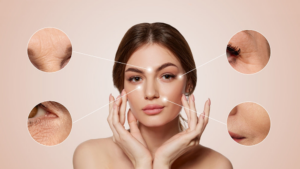
When you want to fix an image rather than reinvent it, an AI photo editor is the better starting point. It is useful for quick improvements like cleanup, touch ups, light adjustments, and polishing assets for publishing.
A practical option is the Free AI Image Editor. Use it when your main need is “make this image look better” without turning the job into a full design project.
Minimal how to
- Upload the photo you want to improve.
- Start with the most obvious fix first, like cleanup, enhancement, or simple adjustments.
- Zoom in and inspect details that viewers notice, such as faces, logos, product edges, and text.
- Export and test it where it will be used, like a product card, thumbnail, or feed post.
Competitor snapshot, AI photo editors
| Option | Best for | Strengths | Tradeoffs |
| EzRemove AI photo editor | Quick upgrades and cleanup | Simple workflow, fast results | Less granular than pro desktop retouching |
| Canva editor tools | Template led content | Easy layout plus basic edits | Editing depth varies by task |
| Adobe Photoshop | Pro control | Maximum precision and layering | Steeper learning curve, slower for quick jobs |
| Pixlr style web editors | Browser editing | Familiar editor feel | Some tasks still require manual work |
| Mobile editor apps | On the go posting | Fast and convenient | Less consistent control for brand batches |
When this tool is the right pick. Choose it when you already like the photo, but need it cleaner, sharper, or more published ready.
Tool 2. Restyle from an existing image, create variations fast
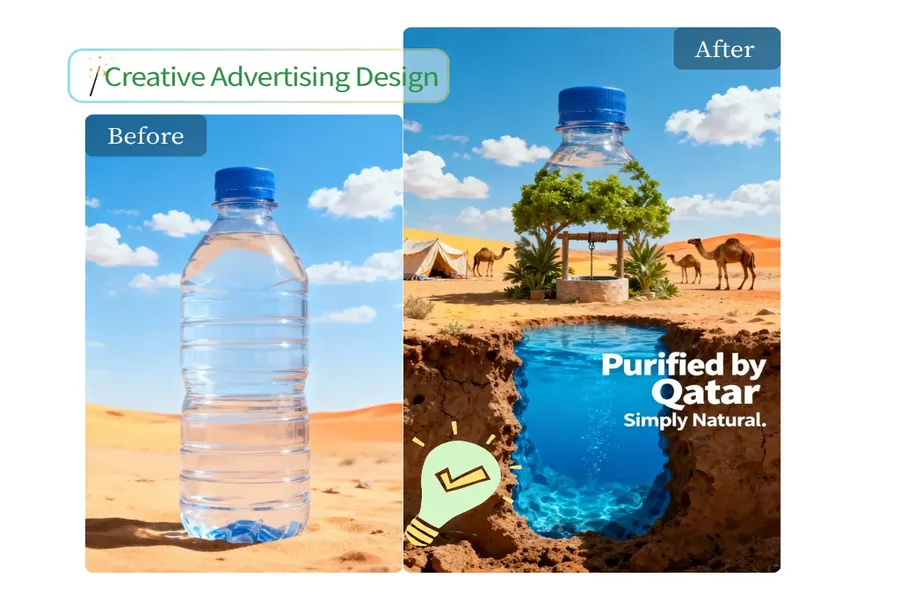
When the problem is consistency, not cleanliness, image to image generation is often the better lever. You start from a real image, then generate versions that match a target look. This is especially useful for making a cohesive set for ads, seasonal campaigns, or a branded social grid.
A direct option is the Free Image to Image AI Generator. Use it when you want variations that keep the original structure, while shifting the style, mood, and overall finish.
Minimal how to
- Upload a clear source image. Cleaner inputs usually produce cleaner outputs.
- Pick one style direction for a batch, like “clean studio product look,” “warm cinematic,” “minimal lifestyle,” or “illustration.”
- Keep your prompt short and specific. Focus on lighting, mood, background feel, and texture.
- Generate multiple versions, then select the one that preserves identity, like product shape, logo details, and key facial features.
- Do a final artifact check. Watch for warped text, odd shadows, and unnatural small details.
Competitor snapshot, image to image tools
| Option | Best for | Strengths | Tradeoffs |
| EzRemove image to image | Quick restyling from your photo | Fast variations, good for cohesive batches | Like most AI, artifacts can happen |
| Adobe Firefly | Brand friendly variations | Strong creative suite integration | Often credit based usage |
| Runway | Creative transformations | Good for stylized outputs | More feature rich than some users need |
| Stable Diffusion img2img | Power users | High control and repeatability | Setup and tuning take time |
| Midjourney style remix | Artistic exploration | Strong aesthetics | Less “edit a specific photo” oriented |
When this tool is the right pick. Choose it when your visuals feel mismatched, or when you need multiple creative directions from the same base image.
Use cases that make both tools worth knowing
Even if you only use one tool per project, these are common scenarios where they pay off quickly.
- Ecommerce images that need cleaner product presentation
- Social media batches that need a consistent look across a week
- Ad creatives where you need multiple variations for testing
- Thumbnails that must be recognizable at small sizes
- Profile photos that should look polished but not over edited
Wrap up. Pick the tool that matches today’s bottleneck
If your images are close but not polished, start with the AI editor. If your images are fine individually but inconsistent as a set, start with image to image restyling. The simplest way to validate either tool is to run one photo through it, then repeat on a batch of five using the same approach. That is how you get speed, consistency, and results without turning editing into a full time job.