Create Instagram Quotes That Speak With Capcut Pc’s Ai Voices
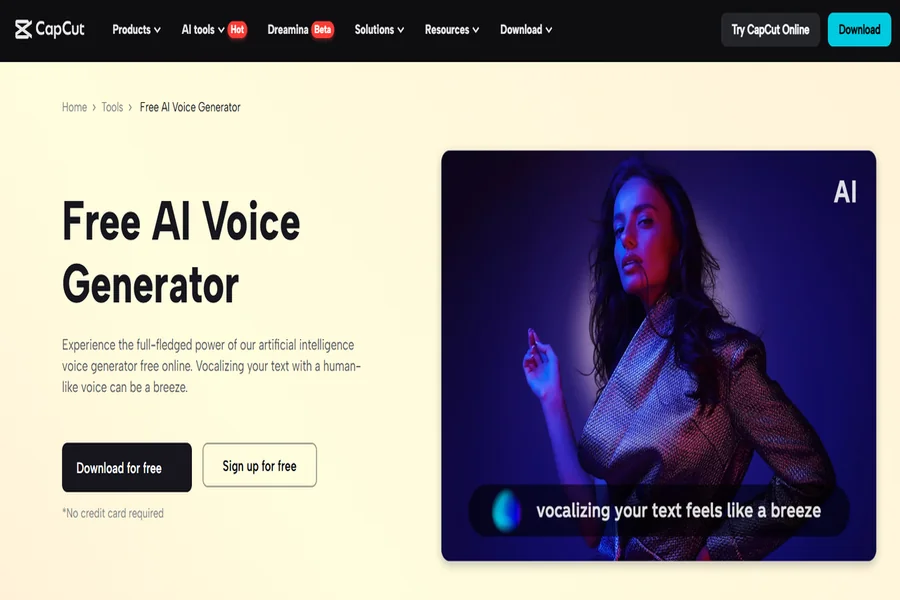
Short quote reels are now one of the most loved formats on Instagram. Many creators are turning these into voice-led videos to make the message more real and strong.
But not everyone feels ready to record their own voice or has the right tools for it. This is where the text-to-speech tool on CapCut PC becomes useful. It turns written quotes into spoken lines with a few easy steps.
You do not need a mic or voice skills. You just need your script. Now, let’s look at how to use CapCut Desktop Video Editor to make quote reels that speak.
Why Use Spoken Quotes in Reels
Voice makes quotes feel clearer and full of meaning. It helps the message reach the heart, not just the eyes. Hearing a quote makes it easier to remember than just reading it on a quiet slide. For people who do not feel ready to speak on camera, spoken text is a safe and smart option.
It also adds life to plain text posts and still images. Whether you’re sharing life tips or daily motivation, voice makes it stand out. This is great for both personal accounts and brand pages that want to tell strong stories.
Spoken quotes also help break the scroll and grab the viewer’s ear. They sound more real and make each reel feel more alive. With CapCut PC’s AI voice generator, you can do this in seconds. You don’t need mics or voice gear. The tool turns your quote into a clear voice that fits your style.
Benefits of Using CapCut Desktop Video Editor’s TTS Tool for Spoken Quote Reels
The text-to-speech tool in CapCut Desktop Video Editor gives you many voice styles. You can pick a soft, calm tone or a bold, strong one based on the quote. It also lets you control how fast or slow the voice sounds. You can adjust the pitch to match the mood of your message.
There’s no need to record your voice. You avoid mic problems, background noise, or retakes. If you don’t like the sound, just change the text and try again. This saves time, especially when you want to make many reels in one go.
You can use it with video clips, still photos, or text animations. Add music, filters, or transitions to make it more engaging. You can also use motion effects or sound wave visuals to give your post a modern look.
To make the video even better, pair it with an AI video upscaler. It sharpens your clips and gives them a clean, high-quality finish.
You can export videos without watermarks using the free version. But keep in mind, some voices and export features may need a paid plan.
CapCut PC makes voice-led quote reels simple, even if you’ve never edited before.
Steps to Create Instagram Quote Reels with Voice Using CapCut Desktop
Step 1: Download and Install CapCut PC
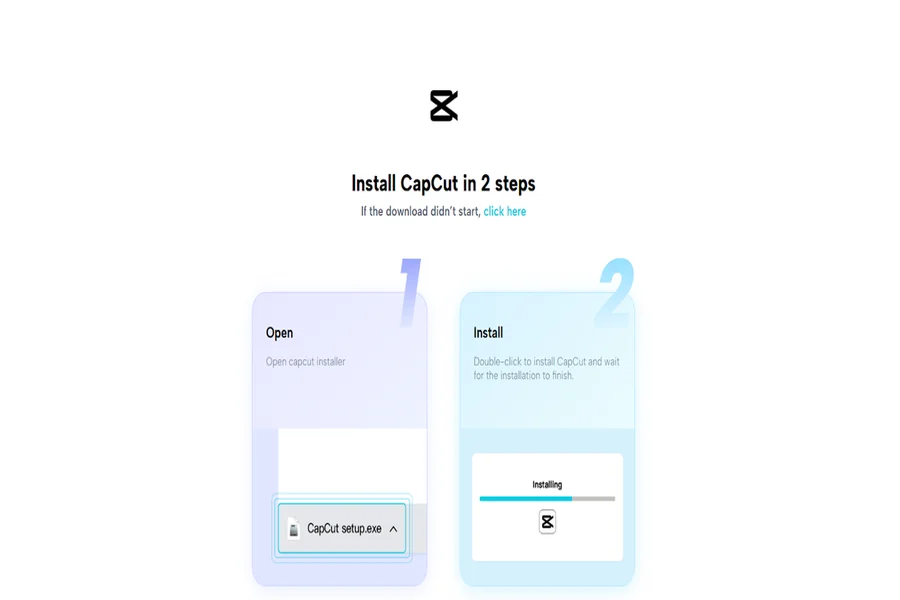
Go to the official CapCut website to get started. Download the CapCut Desktop Video Editor based on your computer’s system.
Once the file is downloaded, open it and follow the setup instructions. Sign up or log in to your account. Click “New Project” to begin editing. Make sure your internet is working, as some features need online access.
Note: While CapCut PC offers many tools for free, some advanced voice styles and export features require payment.
Step 2: Import or Create Your Quote Scene
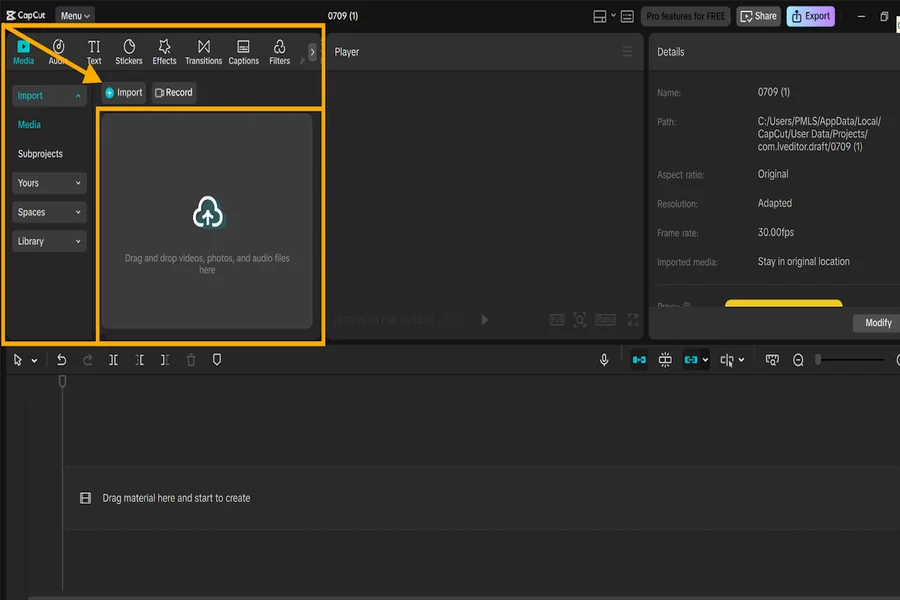
Tap on the Import button to upload a photo, a short video clip, or an animation as your reel background. You can also utilize the Text tool in the left menu to enter and insert your quote.
Use the timeline below to place your media and text in the right order. Make sure the quote stays on screen long enough to match the voice that will follow. This gives a smooth and clear viewing experience.
Step 3: Add Spoken Text Using TTS
Select the text tab from the left. Choose the Text-to-Speech option. In the pop-up box, enter the quote you want to convert to voice.
Pick a voice style: robotic, natural, deep, or light. Use the sliders to adjust pitch and speed. Click preview to hear how it sounds.
Once it sounds good, click Generate Voice. Drag the audio to your timeline. Match it with your text or media to sync the flow. No outside tools are needed; CapCut Desktop Video Editor gives you everything in one place with its built-in text to speech AI.
Step 4: Final Touches and Export
Add background music or light visual effects if you want. Click Export, choose the video quality, and file name. Set your save location and finish the export. With the basic version, you can download your video without watermarks.
Conclusion
Spoken quotes help your Instagram reels feel more real and easy to follow. They make the message clear and keep your viewer engaged. With different voice styles, you can set the right tone for every quote.
The CapCut Desktop Video Editor makes it simple for anyone to create voice-led reels without needing to speak. You can edit, adjust, and improve with just a few clicks. Keep in mind, some voice options and export settings may need a paid plan.
Try CapCut PC’s text-to-speech tool today and turn your best quotes into reels that speak.