Everything You Need to Know About Doing a Spotify Transfer to Another Platform
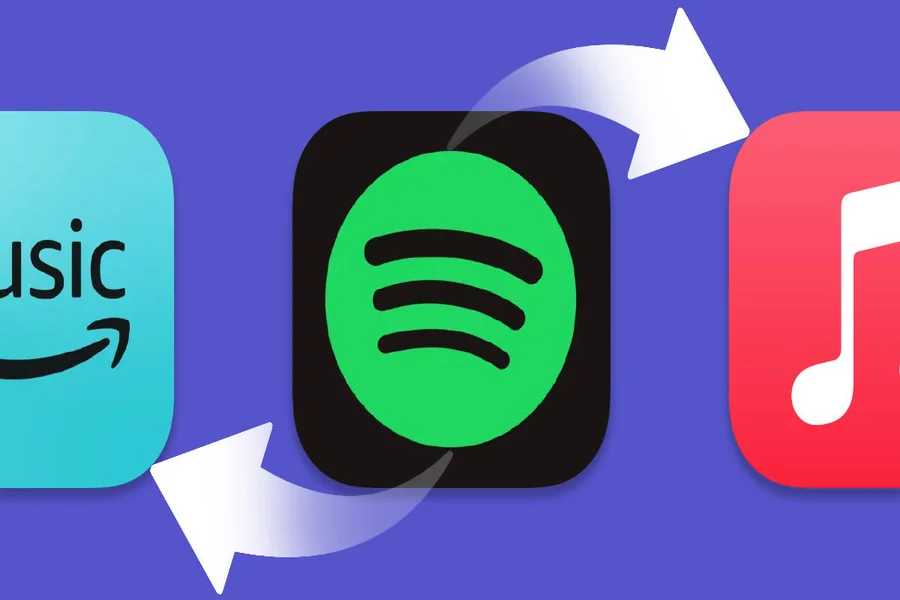
Spotify has held a dominant position in music streaming for years, and for good reason. Its recommendation engine, discovery features, and breadth of catalogue have made it the default choice for hundreds of millions of listeners. But default does not mean forever, and there are growing reasons why someone who built their music life on Spotify might want to move somewhere else.
The perceived obstacle is always the same: years of playlists, liked songs, and saved albums sitting in a Spotify account that you would not be able to take with you. The good news is that this obstacle is not what it appears to be. A Spotify transfer to another platform is something that can be done in minutes, not months, and the tools to do it are accessible, accurate, and widely used.
Why People Consider Leaving Spotify
Spotify’s catalogue is enormous and its interface is familiar, but the competitive landscape has changed. Apple Music now includes lossless audio and spatial audio as a standard feature at the same price point. Tidal has long catered to listeners who prioritize audio fidelity and artist-friendly payout structures. YouTube Music has advantages for users already inside the Google ecosystem, particularly on Android devices, and includes music videos alongside audio tracks. Amazon Music is bundled with Prime in ways that change the value calculation for subscribers.
Price increases, changes to free-tier features, algorithm behavior that feels less personalized over time, or simply wanting to try something new: the reasons people consider switching are varied and personal. What matters is that none of them require you to abandon the library you have spent years building.
What a Spotify Transfer Actually Moves
A Spotify transfer moves the data structure of your library, not the audio files themselves. Streaming files are licensed to each platform separately and are not portable. What is portable is the record of what you have saved: your playlist names, the songs in each playlist, the order of those songs, your liked songs collection, and your saved albums.
On the destination platform, a transfer tool uses this data to find the matching tracks in the new service’s catalogue and rebuild your library. The result is that when you open your new streaming app after a transfer, your playlists appear with the same names, the same songs, and the same song order as they had on Spotify.
To execute a Spotify transfer between platforms, FreeYourMusic connects to both accounts through their official APIs, reads your Spotify library data, and recreates it on the destination service. The process is automated and typically completes within a few minutes for a typical library.
Step by Step: How the Process Works
You download the FreeYourMusic app on any device you own. It is available on iOS, Android, macOS, Windows, and Linux. Once installed, you authorize the app to access your Spotify account through the standard Spotify login process. The app reads your library and shows you what it has found: your playlists, liked songs, and saved albums.
You then connect the account you want to transfer to, whether that is Apple Music, YouTube Music, Tidal, Amazon Music, Deezer, SoundCloud, or another supported platform. You select what you want to transfer, either everything or specific playlists, and initiate the transfer. The app handles the matching and recreation automatically while you can do other things.
When the transfer is complete, you receive a summary showing what transferred successfully and flagging any tracks that could not be matched. These unmatched tracks are typically ones that exist on Spotify but are not licensed to the destination service, and they represent a small percentage of most libraries.
What Happens to Unmatched Tracks
Licensing differences between streaming services mean that a small number of tracks available on Spotify may not be available on your chosen destination. This is not a failure of the transfer tool: it is a reflection of how streaming rights are negotiated separately by each platform.
FreeYourMusic handles this transparently by providing a specific list of which tracks did not transfer. You can then decide how to address them: searching for the tracks manually on the new platform, accepting that they will be gaps in the transferred playlist, or using a streaming service that has a broader licence for those specific artists.
For the vast majority of popular music, unmatched tracks are a very small percentage of a typical library. The experience of discovering a curated playlist from Spotify now living in your Apple Music or YouTube Music account, intact, is one that over 12 million users have had with FreeYourMusic.
Keeping Both Accounts in Sync
For users who do not want to make a permanent commitment to one platform immediately, FreeYourMusic’s auto-sync feature runs ongoing synchronization between two accounts on a repeating schedule. New additions to your Spotify library are reflected on the destination platform automatically, and vice versa if you choose bidirectional sync.
This makes it practical to run a genuine trial on a new platform with your actual music library before deciding whether to make it your primary service. You can listen on the new platform for a month, using your real playlists in their real form, while your Spotify account stays current with anything you add in the meantime.
After the Transfer: Adjusting to a New Platform
The biggest adjustment when switching platforms is not the library: that arrives intact. It is the interface, discovery features, and recommendation behavior that take some getting used to. Most platforms let you rate songs and indicate preferences explicitly, which helps the algorithm learn your taste faster.
Give the new platform a few weeks before evaluating how well its discovery features match your listening. Recommendation algorithms typically improve significantly with several weeks of listening history. The initial experience of a new platform with no history is not representative of how it will feel once it has learned what you like.
Frequently Asked Questions
Does a Spotify transfer delete my Spotify library?
No. The transfer copies your library to the new platform. Your Spotify account remains completely intact unless you choose to delete it.
Can I transfer only some playlists rather than everything?
Yes. FreeYourMusic lets you select specific playlists or your full library. You are not required to transfer everything at once.
Does the transfer preserve the order of songs in my playlists?
Yes. Song order is preserved as part of the transfer. Playlists arrive on the destination platform in the same sequence they were on Spotify.
What is the difference between a one-time transfer and auto-sync?
A one-time transfer copies your library at a single point in time. Auto-sync maintains an ongoing, automated connection between two accounts so that future additions are reflected on both platforms without manual action.
Are there platforms FreeYourMusic does not support?
FreeYourMusic supports all major streaming platforms. Very new or regionally limited services may not yet be included, but the core platforms used by the vast majority of listeners are all supported.